

Creating Your First Agent

Read more articles about the development of Avi and how to use it.
Avi is the most advanced agent system available right now, but I have designed it so that is easy to use for beginners, but highly modifiable for more technical users.
In this article I am going to show you the ‘creation’ part of the Avi system. Then I will explain how it works under the hood.
BTW: The name Avi comes from a character that was created when I was chatting with Claude about building an autonomous personality who could create content, products, social posts etc. Claude chose the name, and it stuck for this product. Full name: ‘Avi Mae’
Creating Your First Agent
When you open up Avi for the first time, you are presented with a welcome screen. Once you have created your first agent, you will see the Agent screen on startup.
Go ahead and click on the ‘Create Your First Agent’ button, you will see the Agent window.
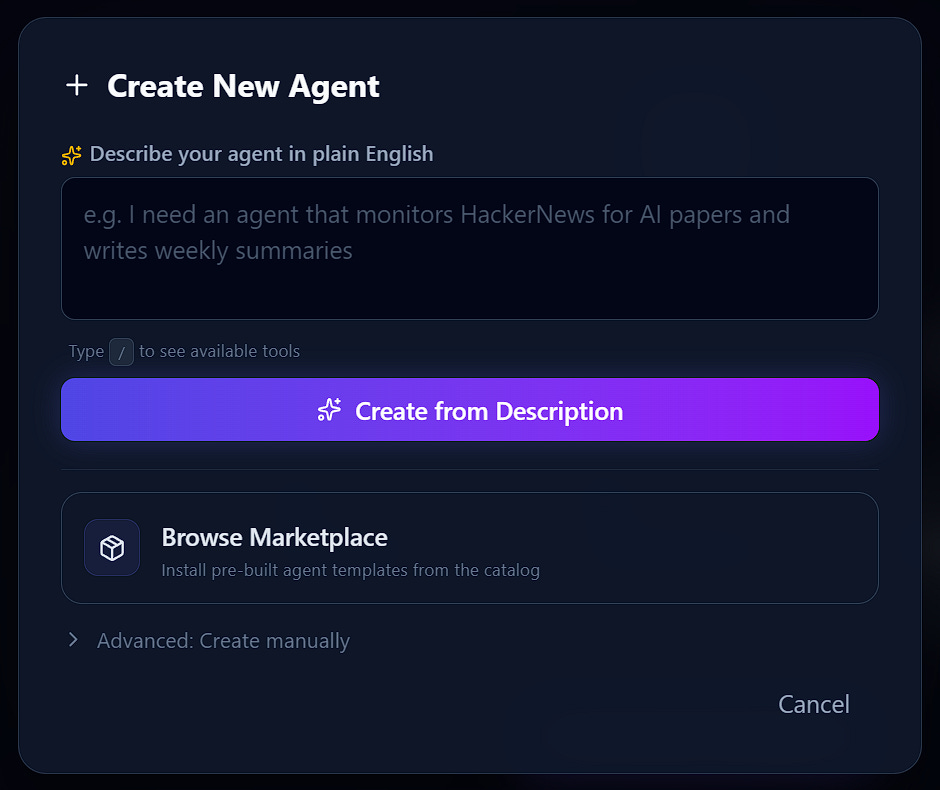
There are three main ways you can create agents in Avi, the first is to type something in the top box and click create from description, the second is Browse Marketplace which we will get to later, and the third is the Advanced option. I want you look at that first as I need to explain somethings. Click the dropdown and you will see this:
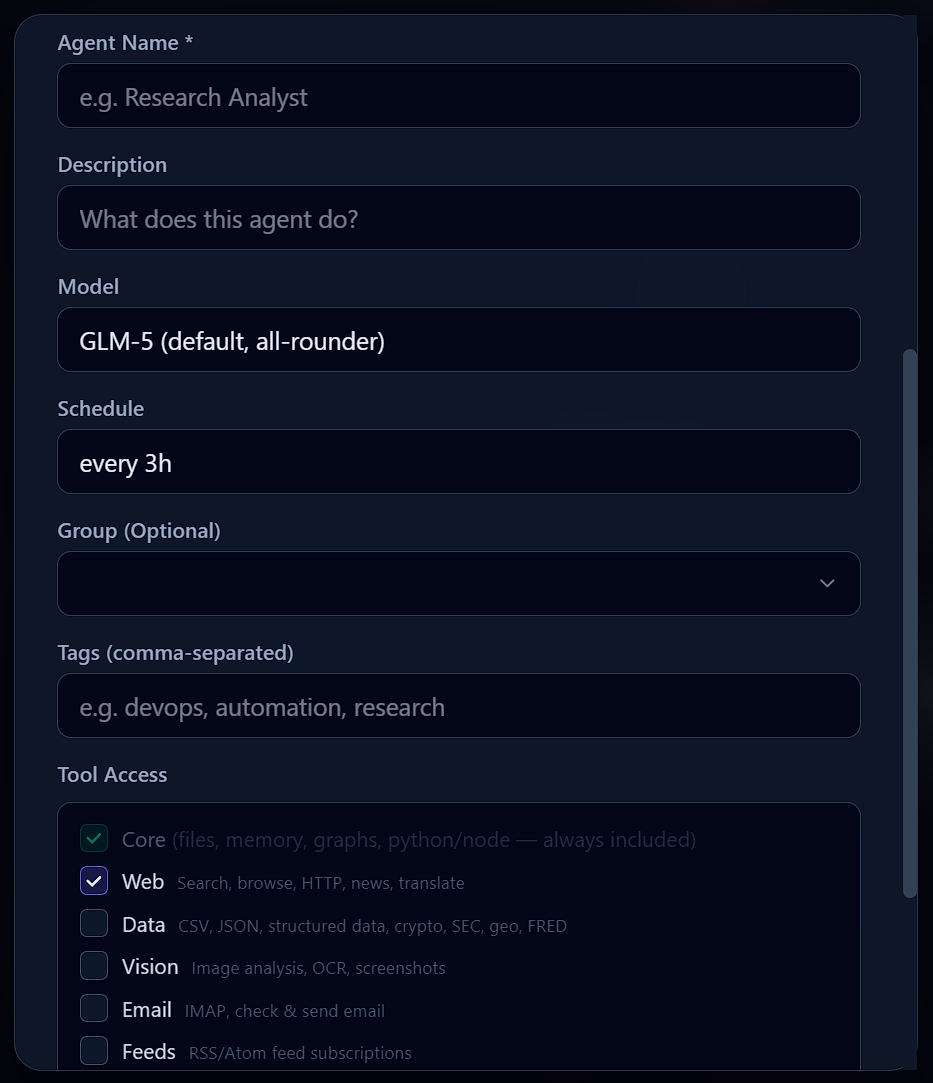
The Agent Name is obvious, give it a name such as ‘Newsletter Builder’ so it is obvious what it does. Choose wisely as you can’t rename at the moment (I will fix that soon).
The Name and Description fields are just for you, they don’t affect the Agents behaviour, although, like in the example I gave previously, Moriarty did eventually take on the identity of Professor Moriarty, so be warned, agents do weird and unexpected things some times.
Next up is one of the important things to choose (you can change this at any time), if you click on it you will see a list of LLMs you have access to. If you signed up for the Go subscription I strongly suggest you scroll down and choose Minimax M 2.7.
This is by far the best option for agents, it uses the tools at its disposal really well, it dirt cheap, and is the modal I use for almost everything.
If you are not using the Go subscription then Choose GLM 5 for now, and I will show you how to use MiniMax via open code in a minute. (My bad, I forgot to include it in the list of OpenRouter models).
On a quick not, using MiniMax via OpenRouter will cost you 2.5x that using a Go subscription.
Next up is the schedule, how often your agent runs, initial I would click in the box and change that to on-demand. (make sure to add the hyphen). The system is quite flexible you can type things like every Monday at 2am and it will figure it out.
You can set up groups and tags for each agent, ignore that for now, you can move things around later.
Now the most important settings, Tools.
Avi has a load of tools built in, but you should only give your access to tools you think it will need. (you can change this later), this is because every group of tools you include increases the size of the prompt the agent gets, which means more token usage, higher costs.
So for example, if I was creating an Agent that searched for new blogs on a topic whose job is to build the list of feeds, then maybe write summaries of new articles I would choose Web, and Feeds.
And that are the main settings for an agent, the trouble is, it doesn’t know what to do. When you hit Create at the bottom, it will just create a blank agent. This is how I create most of my agents as I know the system inside out.
But for you first set of agents you should probably use the other two options.
So let me explain how they work. If you close the advance dropdown you will just see a small box where you type what you want your agent to do. The Avi system will then take what you write and build out a fully fledged agent system behind the scenes.
We will do that in the next article, but for now, let’s use the marketplace.
The Marketplace
This is where you to one click install agents I have built, as I build a new one in this series of articles it will automatically appear there.
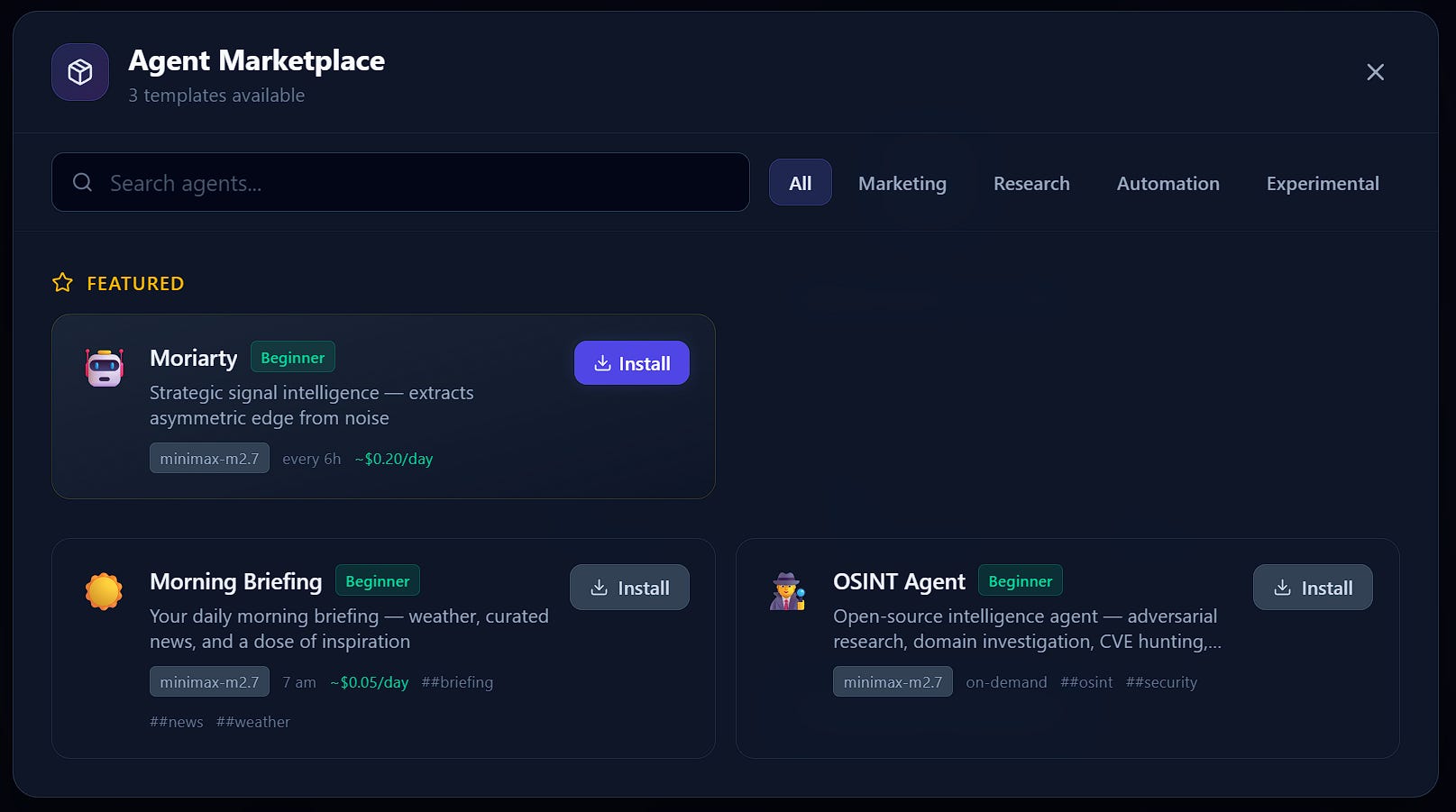
In a future version, you will be able to upload one of your own agents to the Marketplace for other people to use.
For now, click on the Morning Briefing agent and click install. It will then install, close the window and you will see the Agent Dashboard.
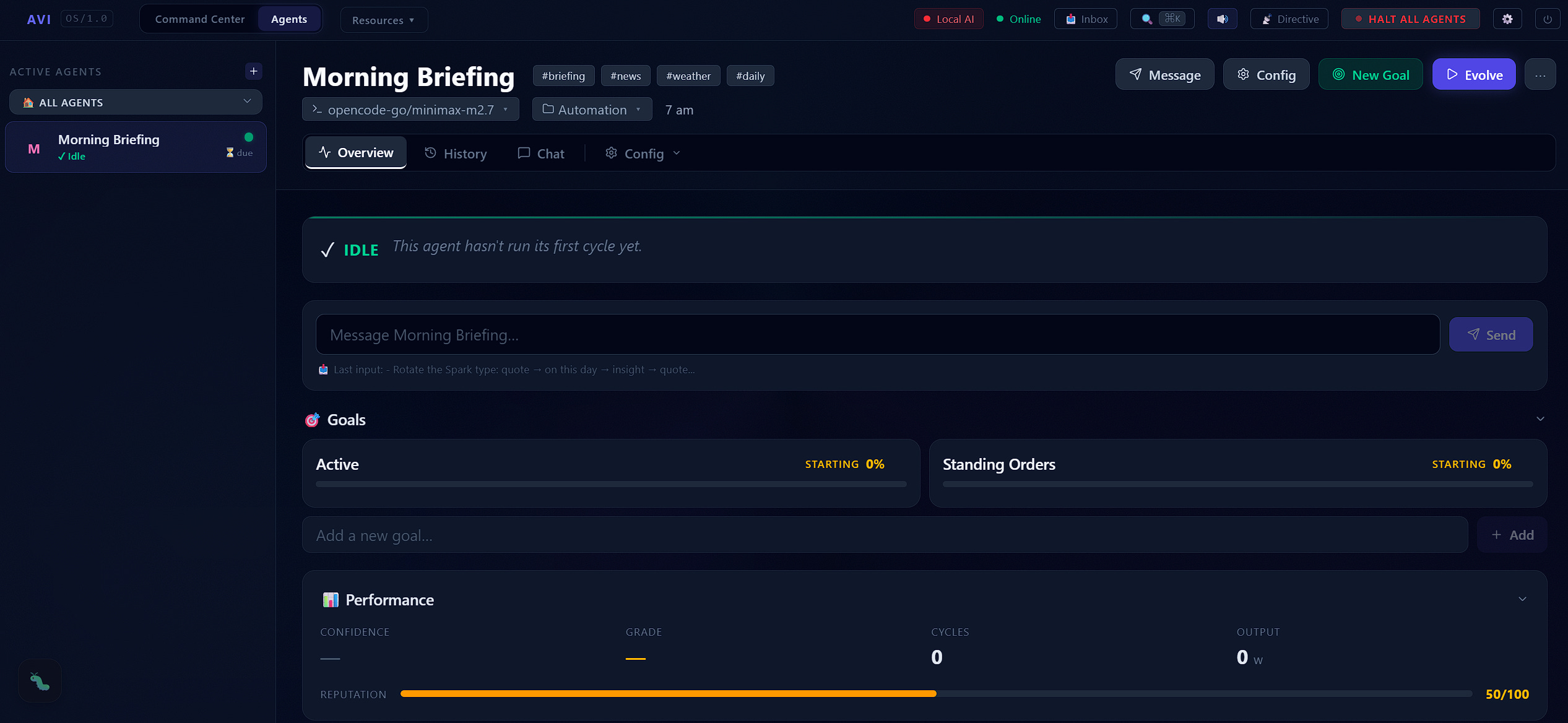
Avi has two interfaces at the moment, The Agent Dashboard, which focuses on individual agents, other agents will be shown on the left, and the Command Center which shows all of your agents action live.
You can switch between the two at the top of the screen.
The first thing we are going to do is click config in the top menu

This is where you can configure several options for your agent, have a quick look around and click on the tabs. Once you have had a look, go back to the General tab, scroll down, and make sure planning is turned on.
When planning mode is off, your agent will follow your rules explicitly, it won’t change or adapt. This is useful for when you have an agent performing a routine task on a schedule.
Initially all agents should be in planning mode so they can work out what they actually have to do and how to do it. I leave most of mine in planning mode because a lot of my agents work on problems, not repeatable tasks.
What I suggest is for a task that stays the same every day is leave them in planning mode until they get it right twice in a row, then switch planning mode off.
Next…
Like I said before, a lot of what happens behind the scenes, but you can look at all of those behind the scenes files in this menu:
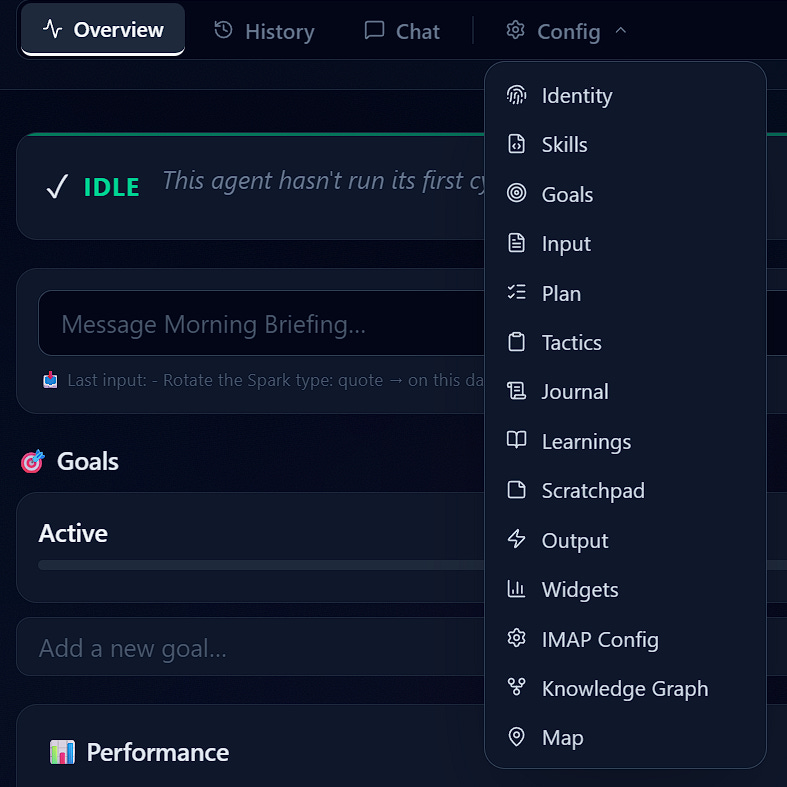
Have and explore, but we are going to be looking at two, Identity and Input. Click on Identity.
This is your agents identity, it describes them and what they do. You can click on Edit in the top right. Go ahead and change the weather location, then hit save.
Now I know this identity looks complicated, but most of it was created by AI automatically (in the next article). You will also notice that it mentions various tools to use, you don’t need to do this, Avi will figure it out automatically, I just wanted the first agent you created to work efficiently and quickly so I added all of those in. When I create an agent I always let Avi figure out how to do things, it learns like this.
Next, open Input.
This is how you communicate with Avi, normally I leave this pretty short, but again this was for training purposes. For now go and edit two things in here, 1. change the weather reference, 2. Remove the line about using Gemini.
On a quick note I mainly communicate with my agents on the main dashboard, and anything I type gets added to the input file.

Ok, that’s all you need in the interface right now. We are going to run the agent for the first time.
Evolving The Agent
This agent is setup to run at 7 am like it should do. But an agent needs to run three or four times so it can figure out what it needs to do, so hit the Evolve button in the top right.
You will see a box opening up showing what the agent is doing, something like this:
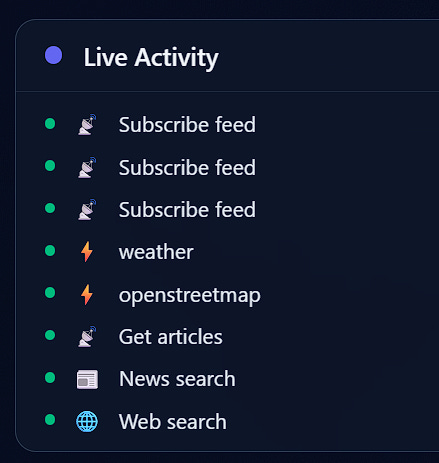
Once the agent has evolved (it will notify you), you will see a new Goals section below.
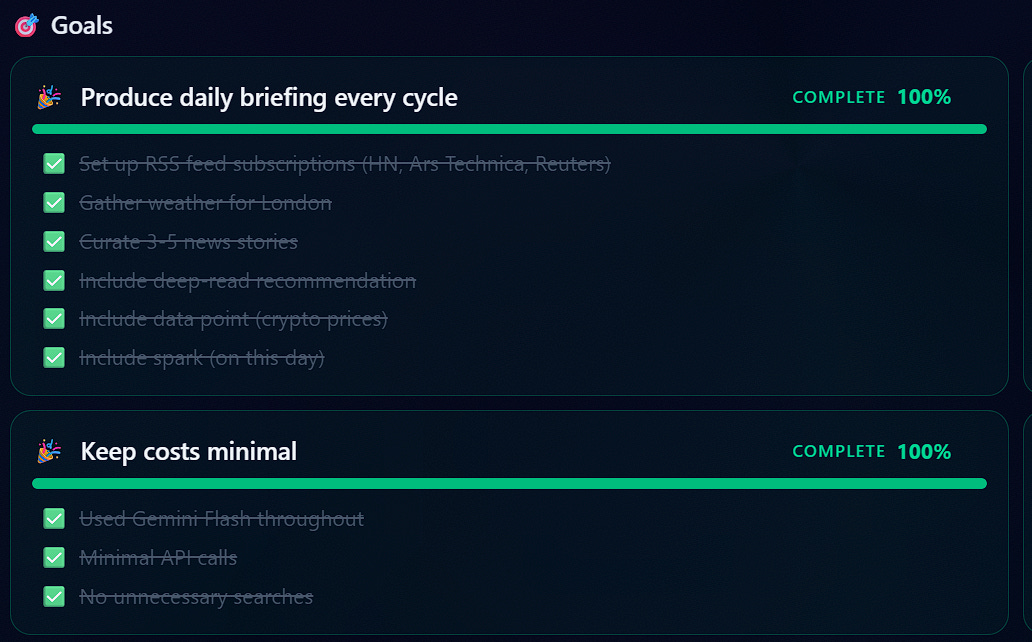
It created itself a list of goals at the beginning, worked on each one, and ticked them all off once they were done. Now this only worked first time because I was very specific about what it needed to do, normally this takes a few runs.
It also created some new goals.
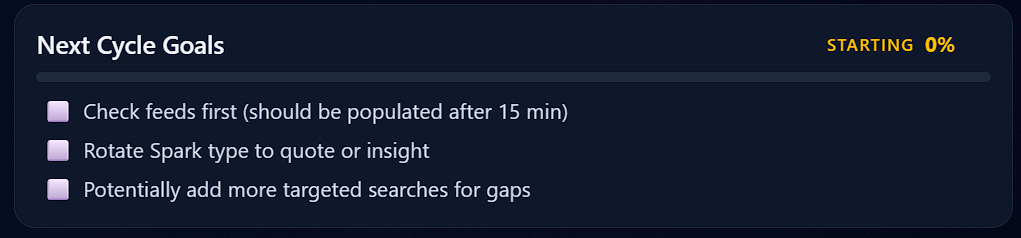
As you can see, one of its goals is to read the feeds first, that is because it has added them but it knows the feed system only runs every 15 minutes in the background.
Scroll down a bit more and you will see the output, your agents may not have done this yet, sometimes you have to wait a couple of cycles, here is mine.
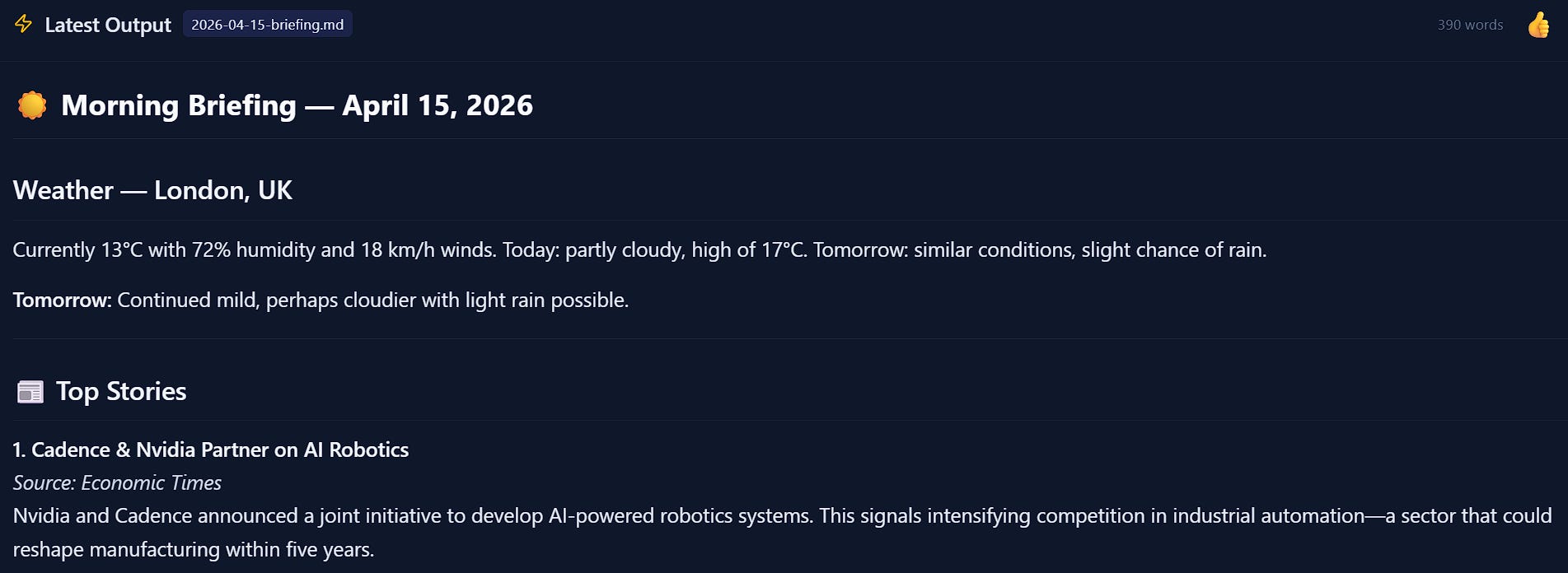
Its a lot longer than this screenshot.
Note: There is a thumbs up and thumbs down option at the top, give the agent some feedback, it is important so it learns.
Scroll down a bit further and you get:
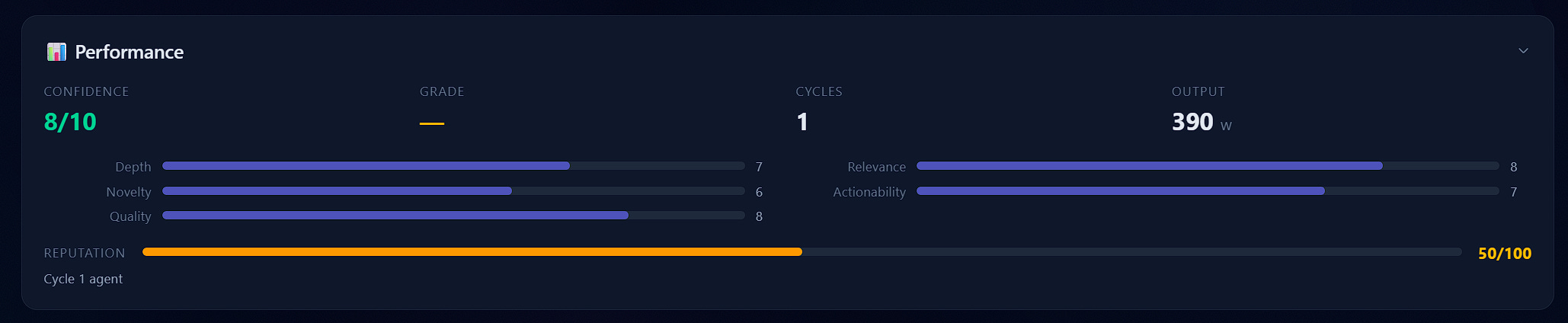
The agent gets graded by the system and this is used for internal feedback, it will also use the thumbs up or down feedback you gave it in the next cycle run.
Next we have reflection:

This a big document the agent creates that reflects on what it has done, what it found, and what it is thinking about.
This agent dashboard gives you a complete insight into what your agent is doing, what it has, done, and what it is thinking about.
Now, if 15 minutes have passed, go and Evolve again.
When my agent evolved it tried to message me but failed, but the message was recovered automatically and was in my inbox (at the top of the screen).
It sent me the following message:

I didn’t ask it to, it just did.
And this is where I am going to leave it for today, you have a complete working agent, watch it evolve and have fun.
Best tutorial to date. Fantastic platform. Even I can get it to work on the first try. After following instructions and "evolving" a couple times, I went back into configuring the agent, and modified quite a bit. Now Morning Briefing gives me a brief weather report, and writes two short news reports that I post on my website. QUESTION: Is AVI capable of finding or creating an image to go along with the news stories?
OK, the first day's morning briefing seems to have run OK. There was 1 minor fail reported that I am not sure how to fix or even if it needs fixing. I checked in the logs and found this report.
QUOTE
Now update state and reflection:
▶ edit agents/morning-briefing/state.json
↳ edit_file ✗ FAIL
ENDQUOTE
Otherwise, I did get a quite good daily briefing for the weather in my location, the news reports were OK but a little diverse in nature. I assume those can either be zoned into reflecting my own needs at some point.